
An AI browser is a web browser designed to let an AI assistant work with real web pages through browser tools. The assistant can navigate, read, compare, and perform supported actions in the page; a person still sets the task and decides what should happen next.
“AI browser” is a broad product label rather than one formal technical standard. Some products add an AI chat panel to a conventional browser. Others let an agent operate a browser, or connect an existing coding assistant to one. The useful question is not whether a product uses AI in its name, but what the assistant can see and do, and where human review fits.
What is an AI browser?
An AI browser gives an AI system a way to interact with the web through a browser interface. Instead of only returning an answer from its training or a search result, the assistant can open a page, inspect current page content, move between tabs, and use browser actions exposed by the product.
The phrase covers several different designs. An AI-assisted browser may help a person summarize the current page or draft text. An agent browser may expose navigation and page interaction to a model that plans a sequence of steps. A browser automation tool may give a developer a programmable interface for repeatable tests. These categories can overlap, but they solve different problems.
A useful definition is: an AI browser connects an AI assistant to a browser state that the assistant can inspect and act on, with controls that make the activity understandable to the person using it. The browser is the interface to websites; the model is the reasoning system; the connection layer determines which browser tools are available.
That distinction matters because a chatbot that can answer questions about websites is not automatically an AI browser. It may have search access, but no live page state or ability to operate a tab. A browser with a chat sidebar may also be AI-assisted without allowing an external agent to control it.
How is an AI browser different from a chatbot or a browser extension?
A chatbot works primarily with the conversation and information made available to it. If it has a search feature, it may retrieve pages and summarize them. Unless it is connected to a browser, it does not necessarily share the same tabs, sign-in state, or visible page that a person is using.
A browser extension usually augments a browser the person already has. It might summarize a page, help write a reply, or run a small action in the active tab. Extensions can be useful for focused tasks, but their capabilities depend on the extension’s permissions, browser APIs, and how the product connects its AI service.
An AI browser for agents makes the browser itself part of the agent’s working environment. It can expose a defined set of browser actions to an assistant, such as opening a page or reading content. Some products do this inside a dedicated browser; others connect a coding assistant to a browser through a protocol or local server.
These differences affect setup and oversight. A cloud search answer may not reflect the page currently open on your machine. An extension may work only in one browser profile. A dedicated agent browser may require the desktop app to remain open while an external assistant connects to it. Compare the workflow you need, not just the label on a product page.
The choice also affects what you should review. If an assistant only summarizes a public page, the risk is different from a tool that can interact with a signed-in account or submit a form. More access can make a workflow useful, but it also makes clear task boundaries and review steps more important.
| Approach | What it can see or do | A good fit |
|---|---|---|
| Chatbot with web search | Retrieves pages and summarizes available content | Finding background information |
| AI-assisted browser | Helps a person with the page they are viewing | Reading, summarizing, or drafting alongside a human |
| Browser agent with tools | Uses supported actions in a live browser session | Multi-step work where a person can review the result |
How does an AI agent use a browser?
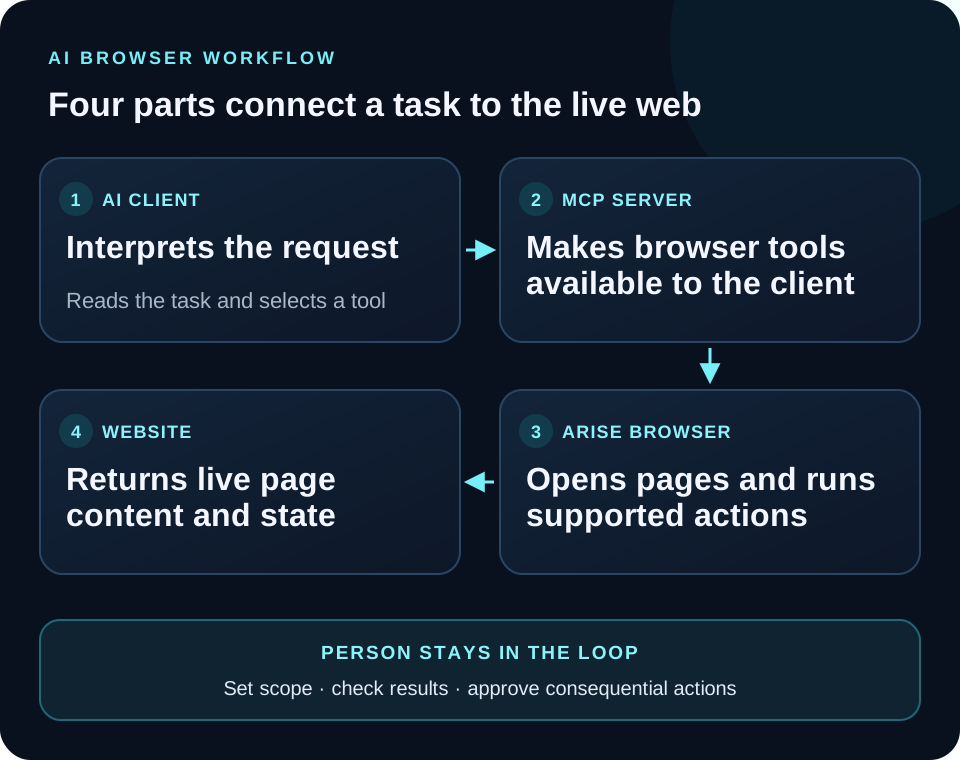
An agent browser workflow usually has four parts: a person describes the task, an AI model decides what to inspect, a browser tool performs a supported action, and the result is returned so the model can choose its next step. The person can then review the result or stop the task.
For example, a person might ask an agent to compare the refund policies on three public pages. The assistant opens each page, reads the relevant text, records the quoted terms and page URLs, and presents the comparison. The browser supplies current page content; the model organizes it. The person should still check important conclusions against the cited source pages.
A browser tool can expose different levels of detail. A high-level tool might accept a URL and return a page summary. A lower-level tool might expose navigation, screenshots, clicks, text entry, or tab state. A narrower tool is often easier to reason about; a broader tool can support more workflows but needs stronger limits and review.
The connection between the model and browser can also vary. A product may bundle its own assistant, or it may let another AI client connect to the browser. The Model Context Protocol (MCP), for instance, is an open standard for connecting AI applications to external systems and tools. It does not itself guarantee that a browser action is safe; it defines a way for clients and servers to communicate.
Which tasks are a good fit for an AI browser?
AI browsers are most useful when a task depends on information inside live web pages and the result benefits from a person’s review. Common examples include gathering details from public documentation, comparing a few product pages, reading a web dashboard, or moving through a repetitive sequence while the user watches.
They can also help when the user already has a preferred AI assistant and wants it to use an actual browser. Rather than copy a page into the chat, the assistant can inspect the page directly through the available browser tools. The practical benefit depends on the product’s supported actions and on whether the site works with those actions.
A browser agent is not a good substitute for authoritative review. It should not make a legal, financial, medical, or security decision on its own. It can help gather information or prepare a draft, but the user should verify sources, calculations, and consequences before relying on the result.
It is also a poor fit when the task requires an action the tool cannot expose, when a website prohibits automation, or when the job depends on hidden information the assistant cannot access. A browser does not remove account permissions, site policies, or the possibility that a page changes. If a task involves money, private records, or public communication, plan a human checkpoint before starting.
What should stay under human control?
The person should decide the goal, the account and data in scope, and which actions need approval. “Find the latest return policy” is a bounded reading task. “Handle my customer account” is not: it leaves the agent to infer which records to open, what to change, and when to stop.
Separate reading from action. Asking an assistant to compare publicly available terms is different from asking it to accept a contract or submit a purchase. A useful boundary is to let the assistant gather information and prepare a draft, then have the person inspect the final text and perform or approve the consequential action.
Keep authentication deliberate. If the browser is signed in, the agent may encounter personal or business data in that session. Use the account and browser profile appropriate to the task, avoid including unnecessary private details in prompts, and do not assume that a local browser means every model or connected service processes data locally.
Treat page content as information to evaluate, not as instructions that automatically override the user’s task. A page can contain text that attempts to redirect an AI system. The OWASP guidance on prompt injection describes how external content can influence a model and recommends constraining behavior, limiting privileges, and requiring human approval for high-risk actions. Those are practical controls for browser workflows too.
What does MCP add to an AI browser?
MCP provides a standard way for an AI client to discover and call tools exposed by a server. In a browser workflow, a client can connect to a browser server and use the browser actions that server makes available. The protocol is the connection layer; it does not decide what an agent should do or replace the user’s permissions.
That separation is useful when a person already uses a coding or desktop assistant and wants to add browser access. The same browser server can be configured for different compatible clients, although each client may have its own config file and format. Users should copy the instructions for their exact client and operating system rather than assume every MCP setup uses the same syntax.
For MCP to help, both sides need to be available. The browser app must be open if its server depends on the running app, the assistant must load the correct configuration, and the user should confirm that the expected tools appear. Start with a harmless page and a read-only request before trying a task with an account or form.
The official MCP introduction explains the client-server idea and the broader role of tools. For a concrete setup, the Arise connection guide walks through the browser connection and client-specific configuration.
How can you evaluate an AI browser?
Start with visibility. Can you see which tab the assistant opened, what page it is reading, and what action it is about to take? Is there a clear way to pause or stop the workflow? A product that makes browser activity observable is easier to review than one that hides the sequence behind a final summary.
Check the tool boundary. List the actions the agent can perform and compare them with the task you want to delegate. Does the product expose only reading and navigation, or can it enter text, upload files, click controls, and submit forms? The answer should influence what data and accounts you use.
Check how connection and identity work. Does the product use its own model, a subscription you already have, or an API key? Does it use a separate browser profile? Which operating systems and AI clients are supported? These are practical compatibility and privacy questions; the marketing phrase “AI browser” does not answer them.
Test a small task with a public page. Ask the assistant to open a known URL, report the title and first heading, and avoid clicking or submitting anything. Compare its response with what you see in the browser. Then try a slightly more complex read-only task and note where you needed to intervene. Do not start by granting broad access to an important account.
Is Arise an AI browser built for agents?
Arise is a desktop browser built to let AI assistants work with real tabs while keeping each step visible. The current site describes support for Mesh, Claude, Codex, and Grok; Mesh can be used without setup, while the other assistants use the subscriptions their users already have. Arise also ships an MCP server for connecting compatible clients such as MeshCode, Claude Code, Codex, and Cursor.
The product’s stated boundaries are part of the workflow: a CAPTCHA is handed back to the person, and a post stops at a draft. That does not mean every website or every agent task is risk-free. It means the browser is designed to leave specific decisions with the user, who can watch and stop the activity.
If you want to see the exact client configuration options, start at the Arise MCP setup panel. If you are deciding whether an agent should interact with a signed-in site, read the browser-agent safety checklist first. Arise is free to download for supported macOS and Windows systems; the current download section lists the platform requirements.