
To connect an AI agent to a browser with MCP, install a browser that exposes an MCP server, add that server to the AI client’s MCP configuration, restart or reload the client, and confirm that the browser tools appear. Start with a read-only task on a public page before connecting an account or asking the agent to enter information.
MCP is the connection protocol between an AI client and tools provided by a server. It does not install a browser, grant an account permission, or decide whether an action is appropriate. The browser product and the client still need to be configured for your operating system and workflow.
What does MCP do in a browser setup?
The Model Context Protocol gives an AI application a standard way to connect to tools and external systems. In a browser setup, an MCP server exposes browser capabilities to a compatible AI client. The client can discover those tools and request their use as part of a task.
Think of the pieces separately. The AI client is where you ask for work. The model interprets the request and plans steps. The MCP server makes tools available. The browser performs supported navigation and page actions. The person sets the task, reviews the result, and decides whether to continue.
MCP itself is not a browser automation policy. It does not guarantee that a site permits automation or that a model will interpret a page correctly. The available actions depend on the server, and the client’s permissions and configuration matter. The official MCP introduction describes the client-server model and how MCP connects AI applications with tools.
This separation makes an MCP browser connection useful when you want an existing assistant to interact with a real browser. It also gives you a clear troubleshooting path: check that the browser app is running, the client points to the right server command, and the client has reloaded the configuration.
What do you need before you start?
You need a supported desktop browser, an AI client that can connect to an MCP server, and access to the client’s MCP configuration. You also need to know which operating system you are using, because binary paths and config formats can differ between macOS and Windows, and between AI clients.
Arise is a desktop browser with an MCP server. Its site currently lists MeshCode, Claude Code, Codex, and Cursor as compatible clients. It lists macOS 13 or later on Apple Silicon and Windows 10 or 11 on x64. Keep the browser app available while the client is using its tools.
You do not need to paste an API key into the browser config. The site says Mesh can be used without setup; Claude, Codex, and Grok use the subscriptions users already have. The MCP connection is separate from the account or subscription you use with an AI provider.
Before configuring a signed-in browser, decide which account and data are in scope. For the first connection test, use a public page. If you have a large MCP config already, make a copy before editing it so you can restore the working setup if a syntax mistake prevents the client from loading its tools.
How do you install and open Arise?
Download the build for your operating system from the Arise download section, install it, and open the browser. The app must stay running while the agent uses the browser server. The MCP command starts the browser’s server process, but it does not replace the desktop app.
On macOS, open the installed Arise app before continuing. The current site lists Apple Silicon and macOS 13 or later as the supported requirements. On Windows, install the x64 build for Windows 10 or 11 and launch Arise. Use the site’s operating-system selector to get the matching command rather than copying a macOS path into Windows configuration.
You do not need to install a separate browser extension to use the MCP server. The browser app provides the connection. The AI client reads a configuration entry that tells it which program to run and which argument enables the server.
Keep the first setup simple. Do not add the server to multiple client config files unless you plan to use it from those clients. Configure the specific client you want to test, then confirm its connection before adding another.
How do you add the Arise MCP server to an AI client?
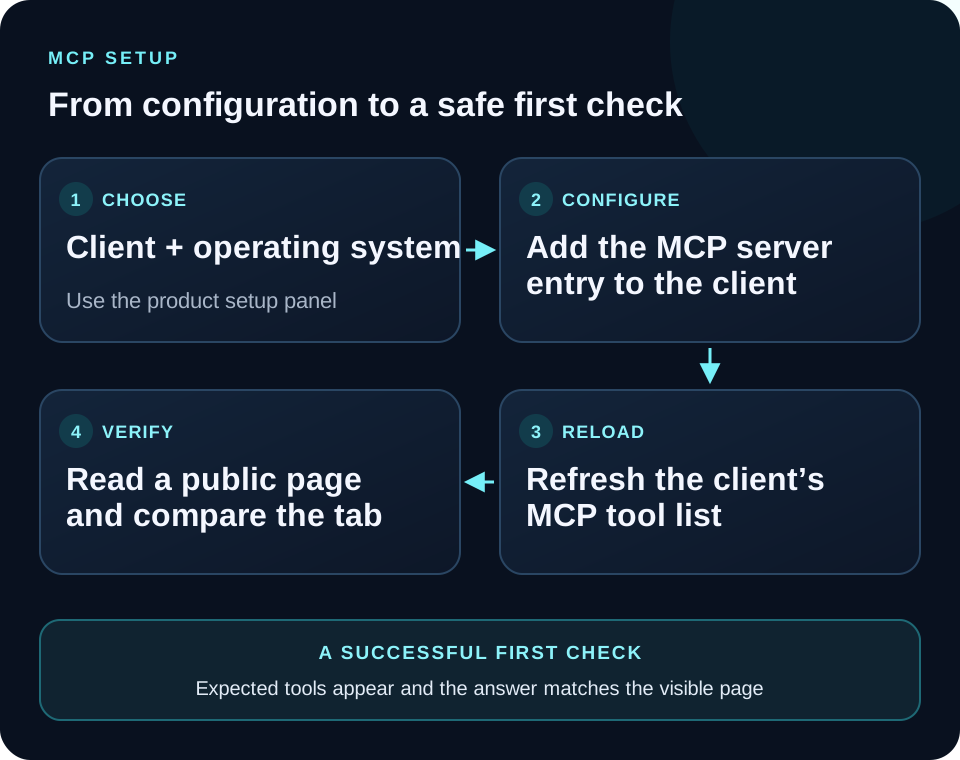
Open the Arise MCP setup panel, choose your AI client and operating system, and copy the generated configuration into the path shown there. The client selector accounts for differences between JSON and TOML formats and gives the right file location for each supported client.
The macOS JSON entry shown for MeshCode, Claude Code, and Cursor uses a top-level mcpServers object, an arise-browser entry, the command path /Applications/Arise.app/Contents/MacOS/agent_browser, and the argument --mcp-server. This is the current example from the Arise selector:
{
  "mcpServers": {
    "arise-browser": {
      "command": "/Applications/Arise.app/Contents/MacOS/agent_browser",
      "args": ["--mcp-server"]
    }
  }
}
Add this entry without removing your other MCP servers. If the config file already contains a mcpServers object, merge the arise-browser entry into that object rather than creating a second top-level object. For Codex, use the TOML version from the selector instead of pasting JSON into config.toml.
On Windows, the generated configuration uses the installed program path and a Windows command wrapper. Copy it from the selector exactly; manual quoting of paths with spaces is an easy source of mistakes. Avoid changing the command name, argument, or capitalization unless you are following an updated instruction from the product.
After saving, check that the file is valid JSON or TOML. A missing comma or bracket can prevent the client from loading any configured server, not just Arise. If your client has a config validator, use it before restarting.
How do you confirm that the connection works?
Leave Arise open, then fully restart the AI client or reload its MCP servers. The site’s setup instructions explicitly call for restarting the agent after configuration. Some clients keep old server state for the lifetime of a session, so saving a file alone may not be enough.
Look for the browser tools in the client’s server or tool list. The exact UI differs by client, but the important check is that the client reports the Arise server as available and can call a simple browser action. If the server is missing or shows an error, troubleshoot the config before asking it to do real work.
Use a harmless public page for the first request. Ask the agent to open https://example.com, report the page title and first heading, and avoid clicking links or submitting anything. This mirrors the sample prompt on the Arise site. Compare the answer with the visible tab so you know the agent is reading the page you intended.
A successful test confirms that the client can reach the browser tools. It does not verify every action, every website, or the correctness of the model’s future responses. Test a new workflow with a small, reversible task before relying on it for an important job.
What should you do when MCP does not connect?
First, confirm that Arise is open. If the desktop app is closed, the client may be unable to reach its browser server even when the configuration file is correct. Reopen the browser, restart the client, and check the server status again.
Next, verify the exact config path. MeshCode, Claude Code, Codex, and Cursor use different files, and a project-level file may not be the same one your current client reads. Use the location displayed in the Arise selector. Make sure you edited the settings for the client you are actually running.
Then check the command and format. The macOS command points into the installed app bundle. Windows uses a different path, and Codex uses TOML in the current setup instructions. Do not copy a JSON object into a TOML file or leave a duplicated top-level mcpServers key.
If the client still cannot start the server, remove only the Arise entry, save the file, and add it again using the selector. Review the client’s own MCP error message for a missing file, invalid config, or permission prompt. Keep the message available while troubleshooting instead of guessing at a different executable path.
| Symptom | Check first | Next step |
|---|---|---|
| Arise server is missing | App state, config path, and client reload | Open Arise and reload the MCP server list |
| Client reports a parse error | JSON or TOML syntax and duplicate keys | Validate the file, then merge the Arise entry into the existing server map |
| Tools appear but a task fails | The requested action and the current browser page | Try one read-only action on a public page and compare it with the visible tab |
How should you use the first browser task?
Begin with a read-only request that has one clear outcome. “Open the public documentation page and quote the heading called Authentication” is more testable than “research this product.” Include the URL, the information you want, and actions the agent should avoid. Check the result against the open page.
For a comparison task, identify the exact pages and the fields to collect. Ask for source URLs alongside the findings. If a page is unavailable or a heading has changed, the agent should say so rather than fill gaps with a guess. Treat summaries as a starting point and verify important details in the source.
Only move from reading to writing when the workflow is understood. If an agent drafts text in a form, review the text and destination before you submit it. Never include credentials in a prompt. Use the account and browser profile appropriate to the task, and stop if the page asks for an unexpected permission or a consequential choice.
For a broader discussion of what browser agents can do and where a person should intervene, read what an AI browser is and the browser-agent safety checklist.
How does Arise handle browser-agent oversight?
Arise is designed to keep browser activity visible in real tabs so a person can watch and stop the task. Its site also describes two specific boundaries: a CAPTCHA goes back to the user to solve, and posts stop at a draft. Those behaviors help keep certain decisions with the person using the browser.
The product’s browser connection is not a guarantee that every workflow is safe or that every site behaves the same way. A visible tab can still show private information, and an AI client can still misunderstand page content. Keep the request narrow, use a suitable account, and inspect the destination before any high-impact action.
The safety checks above cover task boundaries, account scope, page instructions, and approval points. The product setup panel is the source of truth for the current client configuration, so use it again whenever an app or operating-system update changes the displayed instructions.