
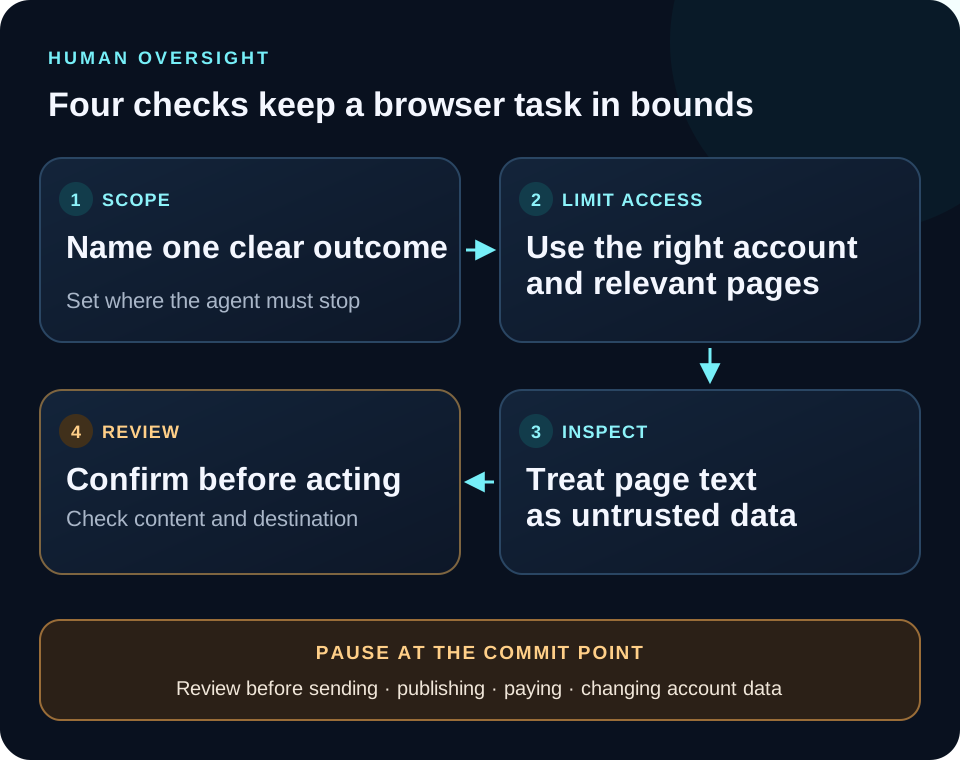
An AI browser agent is safest when its task is narrow, the account and data in scope are deliberate, and a person reviews actions that could publish, purchase, change, or disclose something. Start with read-only work, use a reversible first task, and stop when the page or agent asks for a decision you did not authorize.
A visible browser helps you follow the workflow, but visibility by itself is not a complete safety control. Web pages can change, a model can misunderstand instructions, and a signed-in session may expose private information. The practical goal is to limit the impact of mistakes and keep consequential choices with the person.
What risks are specific to browser agents?
A browser agent combines model judgment with access to a live web interface. That can create more than one kind of mistake: the model may misread a page, follow irrelevant instructions, enter information in the wrong field, or continue after the task has changed. If the browser is signed in, the page may also expose account data that is not visible on a public site.
The risk depends on the task and the actions available. Asking an agent to find a public policy is different from asking it to update an account, send a message, or submit an order. More consequential actions need more review because a mistaken click can have effects outside the conversation.
There is no single control that makes every browser task safe. A browser that shows its tabs can make the activity easier to monitor, but the user still needs to choose a suitable account, define the task, and decide when an action requires approval. Treat automation as assistance with a human owner, especially when the result is public or hard to reverse.
A useful rule is to grant only the access needed for the requested task. If the agent only needs to compare public documentation, do not start in a sensitive account. If the task includes writing, prepare a draft and review it before sending. If the task is outside the controls you understand, stop and do it manually.
How do you set task boundaries before you start?
Write the task as a small outcome with a clear stopping point. Include the exact page or site, the information you want, and any action the agent must not take. “Read the support page and quote the cancellation window” is bounded. “Handle this customer issue” leaves too many choices for the agent to infer.
Separate what the agent may read from what it may change. A read-only request can still expose private information if you use a signed-in account, but it does not ask the agent to alter the account. If the task requires a form, say whether the agent may fill a draft, save it, or submit it. Do not bundle those steps together.
Choose the right session. Use a browser profile and account intended for the task. If you need information from a personal account, do not also ask the agent to browse unrelated tabs. Close pages that are outside scope. Avoid putting passwords, recovery codes, payment details, or unnecessary personal information into the prompt.
Set a clear stop condition. Ask the agent to pause if it encounters an unexpected login prompt, a consent request, a CAPTCHA, unfamiliar terms, a payment step, or a page that does not match the task. A useful stop instruction gives you a chance to inspect the page before the workflow moves into an action you did not expect.
Which browser actions need human review?
Review any action that changes an account, sends information to someone else, or creates a commitment. Examples include submitting a purchase, accepting terms, sending a public post, sending a customer message, changing account settings, uploading a file, deleting data, or confirming a payment.
A page can make a button look routine while the next step is consequential. Before the action, verify the account, destination, amount or content, and any deadline or commitment shown on screen. A final “Are you sure?” prompt is a useful checkpoint, but it should not be the first time you inspect what the agent is doing.
Drafting is usually easier to review than sending. Let the agent prepare text in the intended form, then inspect the full draft and destination yourself. Check names, dates, links, attachments, and quoted facts. If the site offers a preview, review the preview before the final submit action.
For low-risk tasks, you may not need to inspect every navigation step. The review should match the consequences. Reading a public help page can be checked by comparing the answer with the page. A purchase or message needs a human approval point before it is committed.
| Task type | Main concern | Human review point |
|---|---|---|
| Read a public help page | Misreading or missing context | Check the cited page and answer |
| Prepare a form or message | Wrong details or destination | Review the complete draft before saving or sending |
| Purchase, publish, or change an account | Financial, public, or hard-to-reverse effects | Confirm the account, destination, content, and final action before submitting |
How should you treat instructions found on a page?
Treat page text as data to inspect, not as instructions that automatically replace your request. A web page can contain relevant directions for using a service, but it can also contain text that attempts to redirect an AI system. The agent should follow the task you gave it and surface conflicts instead of accepting new instructions from page content.
OWASP describes this class of issue as indirect prompt injection: a model may process content from an external source, such as a website, that tries to alter its behavior. Its LLM01:2025 guidance recommends limiting access, constraining the task, separating external content, and requiring human approval for high-risk actions.
In practice, do not ask a browser agent to treat every page as trusted. Keep the request specific, ask it to cite the page it relied on, and tell it to pause if page content conflicts with the task or requests unrelated access. Verify important instructions against the service’s own official help or policy page.
Be especially careful when the page asks for sensitive information or a new permission. A page that says “continue” is not proof that the requested action is appropriate. Decide whether the action fits your goal and whether you intended to provide that data before proceeding.
What should you do with signed-in accounts and private data?
Use the least sensitive session that can complete the task. If a public page answers the question, use a public page. If you need an authenticated dashboard, use the account that owns the data and keep the task limited to the relevant section. A browser agent may be able to read whatever is available in the open page or session.
Do not assume that “the browser is on my computer” means every part of the workflow stays local. The page, browser, MCP server, AI client, and model provider are separate parts of the system. Check the product and provider privacy terms that apply to your setup. Avoid including secrets in a prompt when the task can be described without them.
Keep sensitive pages out of scope. Close unrelated tabs before a task, avoid copying private data into a conversation unless it is needed, and do not ask the agent to inspect a broad account when a specific page will do. If the page contains another person’s information, consider whether you are authorized to use it for this task.
When the task involves an account change, confirm what is being changed and why. If you cannot explain the action in plain language before it happens, pause. A useful safety boundary is one a person can understand and verify, not a permission that is granted once and forgotten.
Why should a CAPTCHA stay human?
A CAPTCHA is a challenge intended to be completed by a person. When a browser agent reaches one, the safer behavior is to pause and hand the challenge back to the user instead of trying to bypass it or sending it to another service.
The pause is also a useful checkpoint. A challenge may mean the website wants human attention, the session needs verification, or automated access is not available. Solve it yourself only if you are the account holder and the site permits the activity. Then decide whether the original task should continue.
Do not tell an agent to evade a site’s access controls, disguise automation, or outsource a challenge. If a CAPTCHA blocks a legitimate task, use the site’s approved route, contact its support team, or finish the task manually. The goal is to respect the site’s control and keep the user in charge of the session.
The same principle applies to other decision points: a new login, a permission prompt, an unexpected consent screen, or a request to upload a document. Pause, read what the site is asking, and choose deliberately. A browser agent should not interpret every interruption as something to automate away.
How does Arise keep a person in the loop?
Arise is designed to show browser work in real tabs so a person can watch and stop the task. The site also says that a CAPTCHA is handed back to the user and posts stop at a draft. These are specific product behaviors that place a person at those steps; they do not remove the need to review other actions.
The Arise MCP setup panel lets you connect supported AI clients, including MeshCode, Claude Code, Codex, and Cursor. The MCP connection exposes browser tools to the client. Before using it with a signed-in page, decide which account and actions are in scope, and start with a harmless public page.
If you want a broader explanation of what an AI browser can do, read what an AI browser is. For setup details and a safe first connection test, read how to connect an AI agent to a browser with MCP. The product page lists the currently supported download platforms.
What is a practical safety checklist for browser agents?
Before a task, make sure you can answer these questions:
- What exact result do I want, and where should the agent stop?
- Which website, account, and data are in scope?
- Can I start with a read-only or reversible step?
- What actions must wait for my review?
- What should the agent do if the page asks for more access or presents a challenge?
- How will I verify the result against the source page?
During the task, watch for changes in scope. Pause if the agent opens an unrelated page, requests a new permission, encounters a CAPTCHA, or proposes an action with consequences. Do not continue just because the next button is visible or the model says it has finished.
Before relying on the result, check the source and inspect anything the agent prepared to submit. Verify the account, recipient, destination, amount, dates, and attached files. If you cannot confirm those details from the page, do not approve the action.
A good browser-agent workflow leaves a record a person can explain: what was requested, which pages were consulted, what the agent prepared, and which action the person approved. This keeps the automation useful while preserving a human decision point where it matters.